
Getting Started with Wezy Wholesale & Volume B2B
This guide will walk you through every feature of the Wezy Wholesale & Volume B2B app — from installation to managing B2B pricing rules, volume discount tiers, Quick Order CSV imports, the wholesale registration form, and order controls. Everything is powered by native Shopify Functions for maximum performance and reliability.
This app uses native Shopify Functions, which means it works perfectly on all Shopify plans (Basic, Shopify, Advanced, and Plus) with 0ms impact on your store's frontend speed as all discount calculations happen server-side.
App Navigation Overview
The Wezy app is organized into seven sections accessible from the sidebar:
Step 1: Installation & App Embed
After installing the app from the Shopify App Store, you need to enable the Wezy App Embed in your theme. This is what allows wholesale prices, volume badges, and discount information to render natively on your storefront.
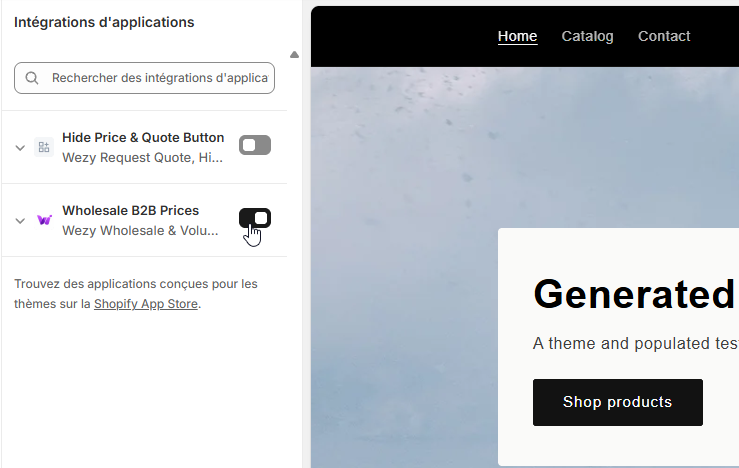
- Open your store's Theme Editor (Online Store → Themes → Customize).
- Navigate to the App Embeds tab in the left sidebar.
- Find "Wholesale B2B Prices" under the Wezy app and toggle it ON.
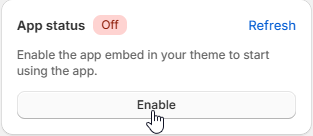
- Click Save. The App Status on your dashboard will switch to On (green badge).
Step 2: Dashboard Overview
Once installed, the Dashboard is your central control panel. It provides a guided setup checklist, real-time performance stats, and quick access to all features.
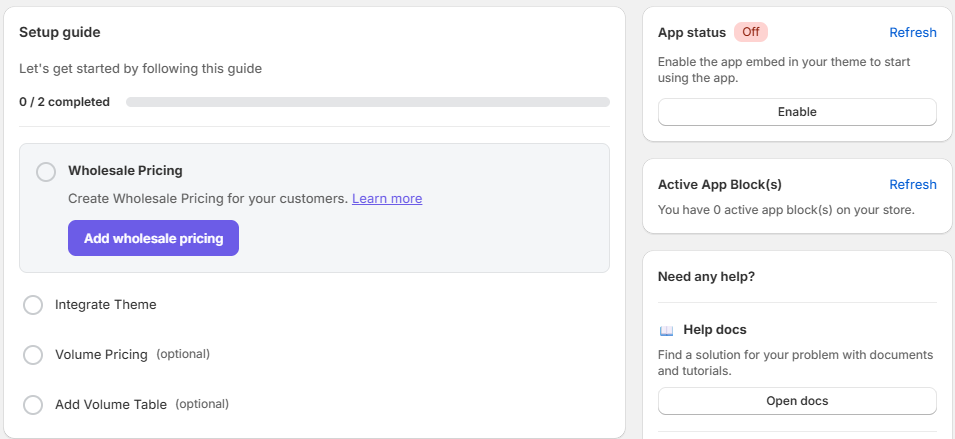
The Setup Guide walks you through four steps:
- Wholesale Pricing — Create your first B2B discount rule.
- Integrate Theme — Enable the App Embed (covered above).
- Volume Pricing (optional) — Set up quantity-based tiers.
- Add Volume Table (optional) — Display volume grids on product pages.
Step 3: Managing B2B Wholesale Rules
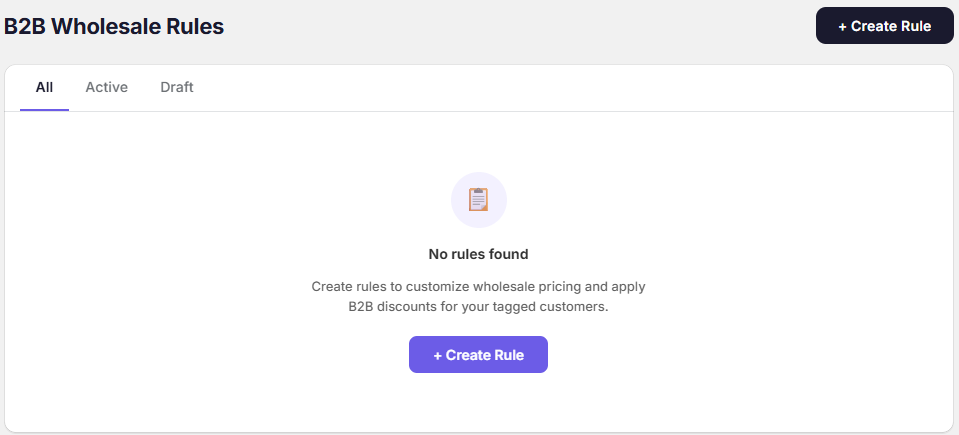
The B2B Rules page is where you create and manage customer-specific wholesale discounts. Rules can be filtered by status: All, Active, or Draft.
Creating a New Wholesale Rule
Click "Create Rule" to open the rule editor. Each field allows you to precisely define who gets the discount, on which products, and how much.
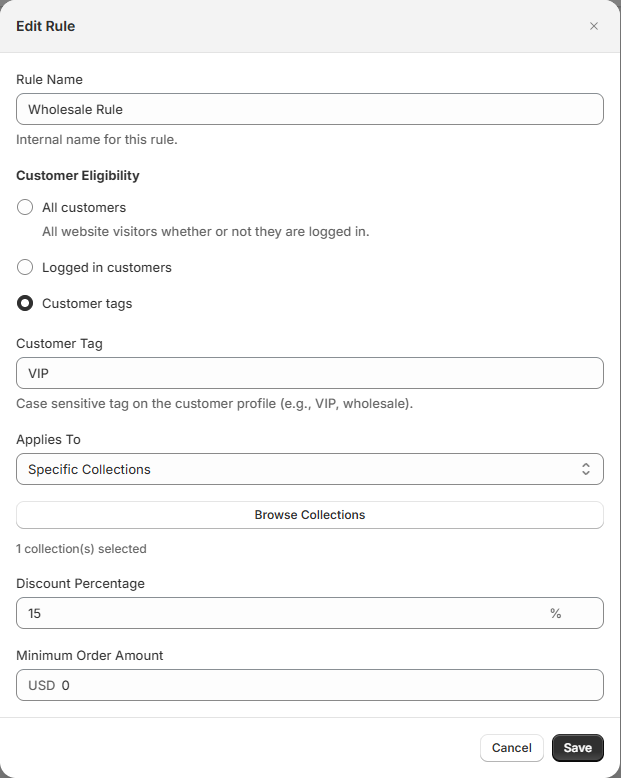
Here is a breakdown of every field:
| Field | Description | Example |
|---|---|---|
| Rule Name | Internal name for your reference. Not visible to customers. | Wholesale Rule |
| Customer Eligibility | Choose who is eligible: All customers, Logged in customers, or Customer tags. | Customer tags |
| Customer Tag | The exact Shopify customer tag that triggers this rule. Case sensitive. | VIP |
| Applies To | Scope the rule to All Products or Specific Collections. Use "Browse Collections" to pick. | Specific Collections (1 selected) |
| Discount Percentage | The percentage taken off the original price for eligible customers. | 15% |
| Minimum Order Amount | Minimum cart value
(before discount) required to activate this rule. Set to 0 for
no minimum. | USD 0 |
Once all fields are configured, click Save. The rule becomes active immediately and your Shopify Discount Function will start applying the wholesale price during checkout.
Order Controls: Minimum Order Quantity (MOQ) & Value
The Order Controls section in the sidebar lets you enforce minimum requirements before B2B discounts are applied. This prevents small or retail-sized orders from receiving wholesale pricing.
- Minimum Order Value (MOV): Cart total must meet or exceed a dollar threshold (e.g., $500) before the wholesale discount activates.
- Minimum Order Quantity (MOQ): Total number of items in the cart must reach a set number (e.g., 10 units) to unlock wholesale rates.
When a customer does not meet the MOQ or MOV requirements, the Shopify Checkout Validation Function will display a clear error message at checkout explaining what is needed.
Storefront Result
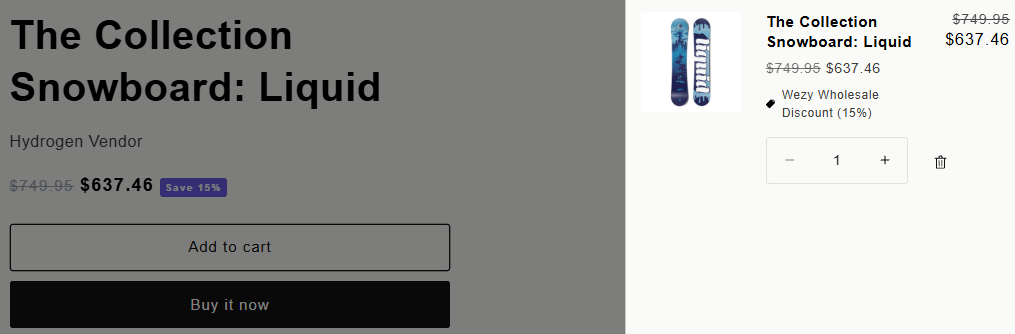
Once a rule is active and the customer is logged in with the matching tag, wholesale pricing appears automatically on the storefront — both on the product page and in the cart.
Volume & Tiered Pricing
Volume pricing rewards customers who buy in larger quantities. Unlike B2B rules (which are tag-based), Volume Pricing applies to everyone based on how many of a given product they add to cart.
Navigate to Volume Pricing in the sidebar and click "Create Rule". Configure your quantity thresholds and corresponding discounts. For example:
| Quantity | Discount | Price (for $100 item) |
|---|---|---|
| 5+ | 10% off | $90.00 |
| 10+ | 15% off | $85.00 |
| 25+ | 20% off | $80.00 |
Adding the Volume Table App Block
To display the volume pricing tiers directly on your product pages:
- Open the Theme Editor and select a product page template.
- Click Add Block inside the Product Information section.
- Select "Wezy Volume Table" from the app blocks list.
- Position the block beneath the product price. The table auto-populates with your active volume tiers.
Quick Order & CSV Import
The Quick Order feature gives wholesale customers a dedicated storefront page for rapid cart building — either by uploading a CSV file or by reordering past purchases.
CSV Bulk Import
Enable Quick Order from the app sidebar. This creates a proxy page on your storefront (e.g.,
/apps/wezy-quick-order) where B2B customers can:
- Upload a
.csvfile with two columns:SKUandQuantity. - The parser validates each SKU against your store catalog in real-time.
- Valid items are automatically added to the Shopify cart via Ajax API.
- Invalid SKUs are flagged with clear error messages.
One-Click Reordering
On the same Quick Order page, logged-in customers can view their Past Orders and instantly duplicate a previous cart with one click. This is essential for B2B clients who place recurring weekly or monthly orders of the same products.
Wholesale Application Form
Wezy includes a fully customizable "Apply for Wholesale Access" registration form. This lets new B2B customers submit their business information directly from your storefront.

Application form fields include:
- Company Name (required)
- Email Address (required)
- First Name / Last Name (required)
- Phone Number (required)
- Business Type — dropdown selection
- Website — optional company URL
- Tax Exemption Permit — file upload (max 10MB)
- Message — free-text field for the applicant to describe their business
Installing the Form on Your Storefront
The wholesale form is delivered as an App Block. To display it on your storefront, you need to add it to a page through the Shopify Theme Editor. Follow these steps:
- Go to Online Store → Themes and click Customize to open the Theme Editor for the theme you want to edit.
- In the Theme Editor, open the Apps tab (the puzzle-piece icon in the left sidebar).
- Click "Wholesale Form" in the list of available app blocks — it is added to the page you are currently editing.
- Drag the block to the desired location on the page (e.g. a dedicated "Wholesale" or "Contact" page), then click Save.


Tip: Create a dedicated page first (e.g.
/pages/wholesale) from Online Store → Pages, then open it
in the Theme Editor and add the Wholesale Form block there. This gives your B2B
application form its own clean, shareable URL.
Reviewing Applications
When a potential B2B customer submits the form, their application appears in the Applications section of the Wezy sidebar. From there you can:
- Approve — Automatically creates a customer account (if needed) and assigns the wholesale tag.
- Reject — Declines the application with an optional reason.
- View all submitted business details including uploaded tax documents.
Troubleshooting & FAQs
If discounts are not appearing or the app is not behaving as expected, check the following:
- App Embed is Off: Verify the App Status badge on the Dashboard shows On (green). If it's red, go to Theme Editor → App Embeds and toggle Wezy on.
- Customer is not logged in: B2B rules require the customer to be signed into their account. Tags are only checked for authenticated sessions.
- Wrong customer tag: Tags are case-sensitive. Ensure the
tag in Wezy matches exactly what is set on the customer profile in Shopify Admin (e.g.,
VIP≠vip). - Discount title conflict: If you see "Title must be unique for automatic discount," another rule or app is using the same discount name. Rename your Wezy rule to resolve.
- Prices not updating on storefront: Clear your browser cache or wait ~30 seconds for CDN propagation after saving a new rule.
- Conflicting scripts: Legacy B2B or discount apps may interfere. Disable other wholesale apps before testing.
Still need help?
Contact our support team at wesy@wezy.app — we typically respond within 24 hours.